
After running Screaming Frog crawls and GSC audits on dozens of WordPress sites, the same technical seo mistakes to avoid come up over and over. Some cost sites a few positions; others wipe out years of progress. What makes technical issues dangerous is that they compound — crawl budget gets wasted on the wrong pages, indexed thin content dilutes overall site quality, and a misconfigured canonical quietly lets a duplicate URL accumulate ranking signals that belong to your main page. Here’s what I find most consistently, and how to fix each one.
Table of Contents
- Ignoring Crawlability Issues
- Missing or Duplicate Meta Titles and Descriptions
- Slow Page Speed That Nobody Has Fixed
- Broken Internal Links
- Wrong or Missing Canonical Tags
- Poor Mobile Experience
- Ignoring Core Web Vitals
- Missing or Misconfigured XML Sitemaps
- Thin Content on Indexed Pages
- Robots.txt Blocking CSS and JavaScript
- Use a Checklist, Not Memory
- Frequently Asked Questions
Ignoring Crawlability Issues
If Googlebot can’t crawl a page, it can’t rank that page. Crawl issues range from outright blocks in robots.txt to slow server responses that cause Googlebot to abandon a crawl mid-site. The most common crawlability problems I find:
- Important pages accidentally blocked in robots.txt — particularly staging subdirectory rules that were never removed from the production configuration
- Noindex meta tags left on key pages after a site redesign or migration
- Crawl budget wasted on paginated archive pages, tag pages, or faceted navigation URLs with no canonical or noindex strategy
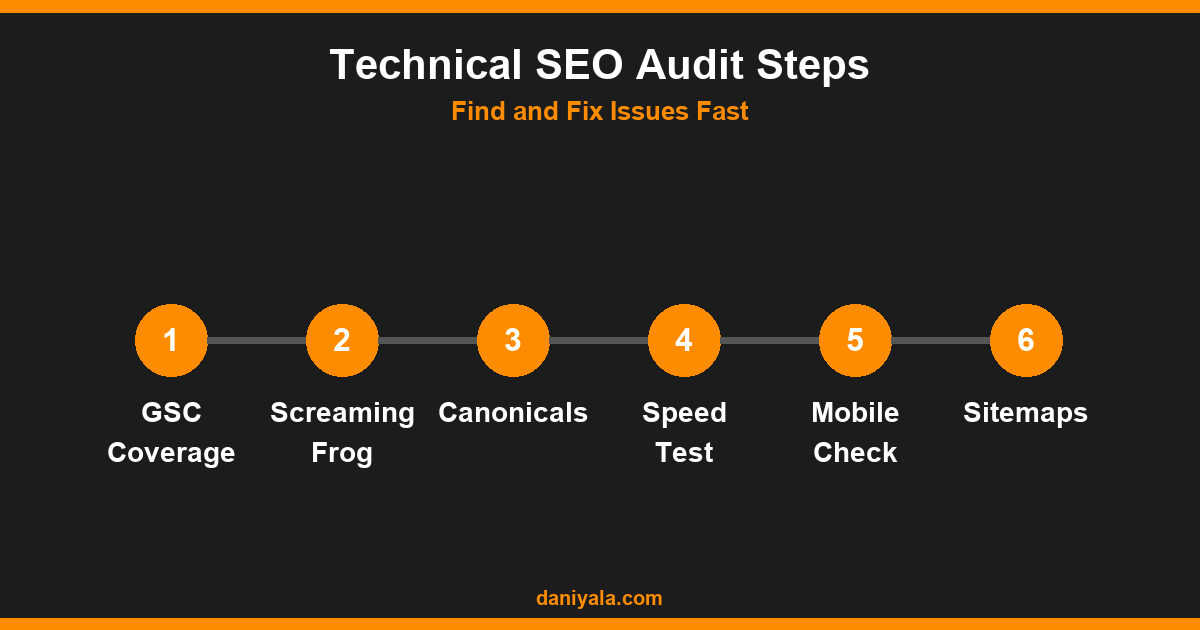
The Google Search Console Coverage report is where you start — specifically the “Excluded” tab, which shows pages Google found but chose not to index, and why. If you’re not checking this monthly, you’re flying blind. My full crawlability audit process is documented in my technical SEO audit guide.
Missing or Duplicate Meta Titles and Descriptions
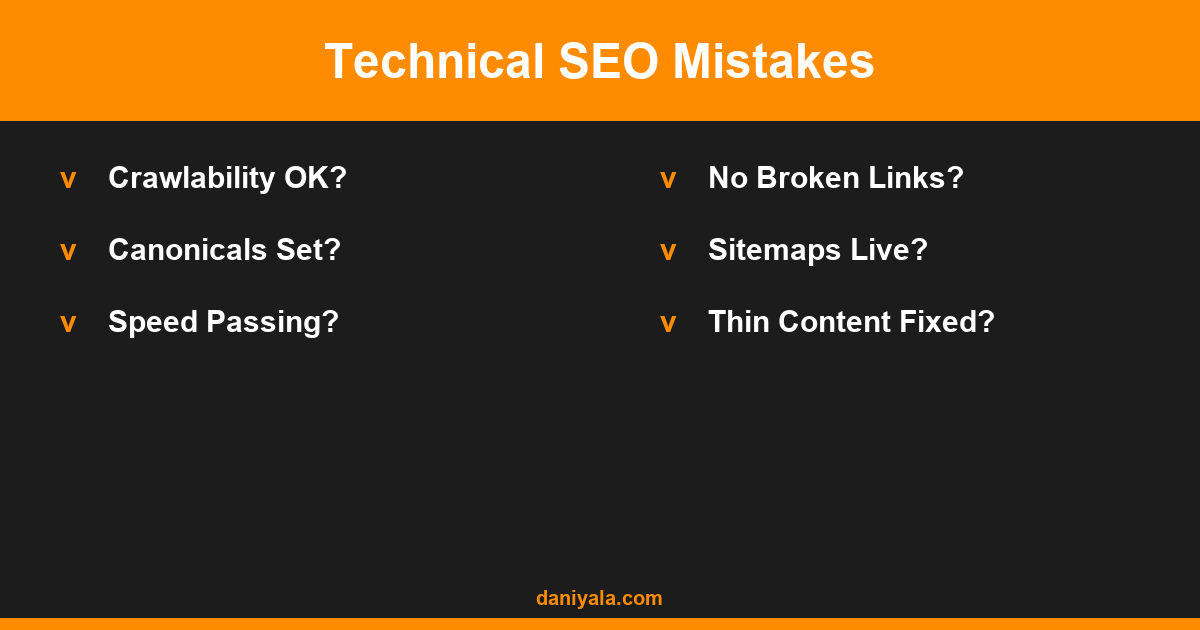
Missing title tags mean Google writes one for you — and it won’t be optimised for your target keyword. Duplicate title tags tell Google your pages are similar even when they cover different topics, which makes it harder to understand your site’s structure. Run a Screaming Frog crawl and filter by: missing title, duplicate title, title too long, missing meta description, duplicate meta description. Fix in this priority order:
- Pages with no title tag at all
- Pages with duplicate title tags (common on WooCommerce product and category pages)
- Titles exceeding 60 characters (Google truncates them in search results, hurting CTR)
My on-page SEO checklist covers exactly what each meta field should contain for different page types — from blog posts to product pages to local landing pages.
Slow Page Speed That Nobody Has Fixed
Page speed affects both rankings and conversion rates. Google confirmed it as a ranking factor, particularly for mobile search. Common speed killers I find on WordPress sites:
- Unoptimised images — PNG files used for photos when JPEG or WebP would be 60–80% smaller
- No caching plugin active, or a caching plugin configured incorrectly (LiteSpeed Cache with browser cache disabled, WP Rocket with minification breaking the page)
- Too many third-party scripts loading synchronously — Google Tag Manager with 15 tags, a chat widget, multiple analytics tools, a cookie consent banner, all loading before the first paint
- No CDN in place for a site serving visitors across different regions
Check your Core Web Vitals in GSC under Core Web Vitals → Open Report. Pages in the “Poor” category are your immediate priority. The Google page experience documentation explains exactly what signals are measured and how they factor into rankings.
Broken Internal Links
Broken internal links (404 errors) waste crawl budget, pass no link equity, and signal to Googlebot that the site isn’t well-maintained. They accumulate naturally as content gets moved, renamed, or deleted — and most sites have no process for catching them. Fix:
- Run a Screaming Frog crawl monthly, go to the Links tab, and filter for 4xx response codes
- Check GSC’s Coverage report for “Not Found (404)” errors listed under Excluded
- For every broken link found, either 301-redirect the target to the correct URL or update the link anchor directly
The how to improve technical SEO guide has a section on building a monthly monitoring process so these issues get caught before they accumulate.
Wrong or Missing Canonical Tags
Canonical tags tell Google which version of a URL is the authoritative one. When they’re missing or wrong, Google decides on its own — and it often picks the wrong version. The most common scenarios I find in audits:
- HTTP and HTTPS versions both accessible without a redirect — Google sees two versions of every page
- www and non-www versions both resolving without a stated canonical preference
- Canonical tags pointing to a staging domain that was never updated after the production launch
- Self-referencing canonicals missing entirely — every indexable page should have a canonical pointing to itself
Check your canonical implementation in Screaming Frog via the “Canonicals” tab — it shows every canonical present, what it points to, and whether the destination is indexable. WordPress with RankMath or Yoast sets self-referencing canonicals automatically, but they can still be overridden by bad server configuration or conflicting plugins.
Poor Mobile Experience
Google uses mobile-first indexing, meaning the mobile version of your site is what Google primarily reads and ranks. If your mobile experience is worse than desktop — slower, harder to navigate, important content hidden or truncated — you’re being ranked on a weaker version of your site. Check GSC’s Mobile Usability report for specific flagged issues. Common failures include text that’s too small to read without zooming and clickable elements spaced too closely together.
Ignoring Core Web Vitals
Core Web Vitals (LCP, INP, CLS) are Google’s user experience metrics. Sites that fail on mobile lose a rankings edge compared to competitors who pass. The most common failure I see on WordPress sites is CLS (Cumulative Layout Shift) — caused by images without defined dimensions, web fonts loading after layout is painted, or ads pushing content down the page as they load. Fix: add explicit width and height attributes to every image element, use font-display: swap for web fonts, and load ads below the fold.
Missing or Misconfigured XML Sitemaps
Your sitemap tells Google which pages are important and when they were last updated. Common problems I find:
- 404 pages listed in the sitemap (deleted posts that were never removed from the sitemap config)
- Noindex pages included — these should never appear in a sitemap
- Sitemap not submitted in GSC at all, so Google discovers it by chance rather than on a schedule
- The sitemap URL itself returning a 404 because a plugin was deactivated
RankMath and Yoast both generate sitemaps automatically. Submit the sitemap URL in GSC under Sitemaps and check it monthly. If it returns errors, find and fix the root cause before expecting Googlebot to crawl your site efficiently.
Thin Content on Indexed Pages
WordPress indexing tag archive pages, author pages, and search result pages by default is a common source of thin content problems. If Google finds that a large proportion of your site is low-value, it can drag down your overall site quality signal — even for the pages you’ve worked hard on. Use RankMath or Yoast to noindex: tag archive pages, author archive pages (unless you’re a multi-author site where author profiles have genuine depth), and internal search result pages. This is a fast win on most WordPress installations with no content work required.
Robots.txt Blocking CSS and JavaScript
An older technical SEO convention — blocking CSS and JS in robots.txt to save crawl budget — actively harms modern SEO. Google needs to render your pages to assess their content, layout, and user experience. If Googlebot can’t access your stylesheets or scripts, it sees a broken version of your site and evaluates it accordingly. Check your robots.txt for any Disallow rules targeting your theme’s CSS or JS directories and remove them. The Google Search Console URL Inspection tool shows you exactly how Googlebot rendered a specific page — use it to verify rendering is working correctly.
Use a Checklist, Not Memory
Technical SEO has too many variables to audit reliably from memory. Use my technical SEO checklist for a repeatable audit process — it covers every item in this guide plus structured data, hreflang, redirect chains, and internal link depth. If you’re building an SEO-optimised WordPress site from scratch, the WordPress SEO guide covers the full setup process from permalink structure to schema markup configuration.
Frequently Asked Questions
What is the most common technical SEO mistake?
In my experience, the most common technical SEO mistake is poor canonicalisation — either missing canonical tags, canonical tags pointing to the wrong URL version, or sites accessible via both HTTP and HTTPS with no redirect enforcing one version. It’s invisible to a casual visitor but costs sites significant ranking equity because link signals get split across multiple URL variations instead of consolidating to one.
How do I find technical SEO issues on my site?
Start with Google Search Console — check the Coverage, Core Web Vitals, and Mobile Usability reports for flagged issues. For a deeper crawl, Screaming Frog’s free plan covers up to 500 URLs and surfaces title/meta issues, broken links, redirect chains, and canonical problems. For ongoing monitoring, use both tools on a monthly schedule and track changes over time rather than running one-off audits.
Do technical SEO mistakes cause ranking drops?
Yes — some cause immediate drops, others erode rankings gradually. A noindex tag added to a key page will cause it to disappear from the index within days to weeks. A robots.txt block that prevents crawling of your main content can cause near-immediate removal from search results. Slow page speed and poor Core Web Vitals erode rankings more gradually as user experience signals accumulate over months of data collection.
How long does it take to recover from a technical SEO issue?
Recovery time varies by issue type and how frequently Google crawls your site. After fixing a canonical issue or removing a noindex tag, submit the URL for re-indexing via GSC’s URL Inspection tool — that can accelerate recovery to days rather than weeks. Page speed improvements typically take 4–8 weeks to show ranking movement as Google recrawls the page and updates its Core Web Vitals assessment.
Should I fix technical SEO before creating new content?
Yes — fix critical technical issues first. There’s no point publishing 20 new articles if half your existing pages have canonicalisation problems, crawlability blocks, or Core Web Vitals failures that signal poor user experience. A site with a clean technical foundation makes better use of every piece of content you add. Run a basic technical audit before investing significant time in a content strategy.
Need help implementing this? I’m Daniyal — freelance SEO & WordPress expert. Contact me or find me on Upwork.










 by Daniyal © 2026 All Rights Reserved