
If you want higher Google rankings, you need to know how to improve technical SEO on your site. Technical SEO is the foundation everything else sits on — and in my experience running technical SEO audits for dozens of WordPress clients, it’s almost always where ranking problems begin. On-page content and links get most of the attention, but crawl errors, slow load times, and missing sitemaps silently kill your rankings while you focus elsewhere.
This guide covers the highest-impact fixes, in the order I tackle them on real sites. No filler — just practical steps.
Table of Contents
- What Technical SEO Actually Covers
- Run a Site Crawl First — Don’t Skip This
- Fix Crawlability and Indexation Errors
- Improve Core Web Vitals and Page Speed
- Strengthen Site Architecture and Internal Linking
- HTTPS, Duplicate Content, and Schema
- Maintain a Regular Technical SEO Routine
- Frequently Asked Questions
What Technical SEO Actually Covers
Technical SEO refers to everything that makes your site accessible, crawlable, and understandable to search engines. It’s distinct from on-page SEO (content and keywords) and off-page SEO (links). Think of it as the plumbing behind the walls.
Key areas include:
- Crawlability: Can Googlebot reach and crawl your pages?
- Indexability: Are the right pages being indexed — and the wrong ones excluded?
- Page speed and Core Web Vitals: Does the site load fast enough to avoid demotion?
- Site architecture: Is the URL structure logical and internally linked?
- HTTPS and security: Is the site served over a secure connection?
- Structured data: Are schema markup signals helping Google understand your content?
When one of these breaks, the rest of your SEO effort can become invisible. I’ve seen sites with 300 well-written articles stuck on page 5 simply because a misconfigured robots.txt was blocking Googlebot.
Run a Site Crawl First — Don’t Skip This
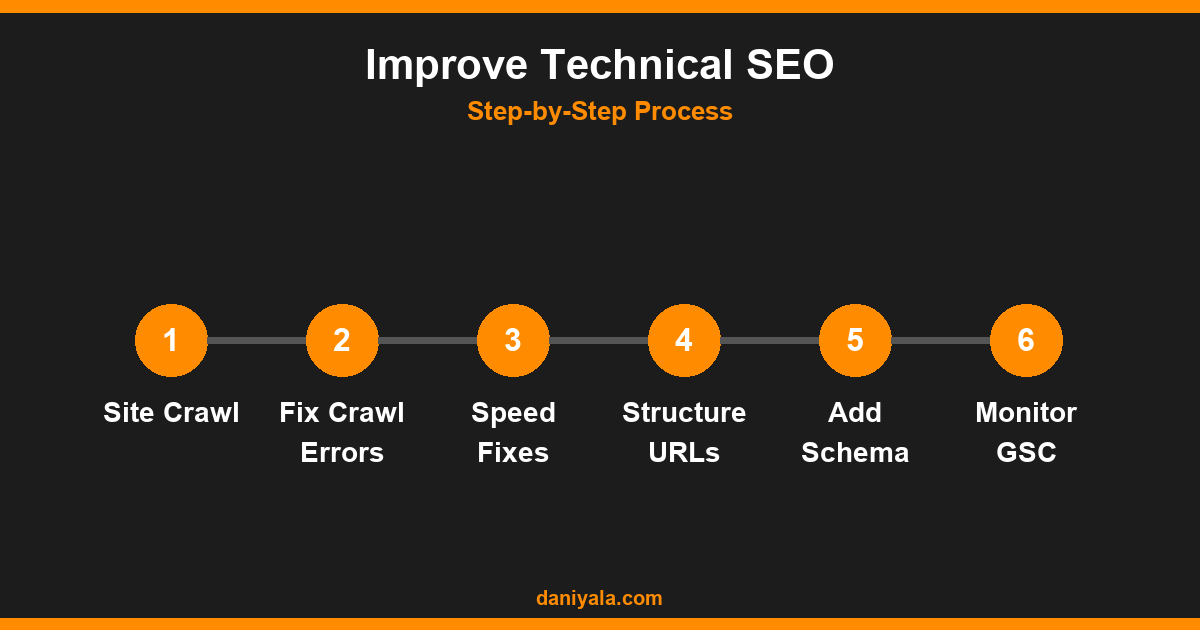
Before fixing anything, you need a full picture of what’s broken. I use Google’s suite of tools — specifically Google Search Console and PageSpeed Insights — alongside Screaming Frog on larger sites.
In Google Search Console, check these reports first:
- Coverage report: Shows which pages are indexed, excluded, or throwing errors
- Core Web Vitals report: Shows your LCP, FID/INP, and CLS scores by page group
- Sitemaps: Confirm your XML sitemap is submitted and returning no errors
- Manual actions: Check for any Google penalties (rare but critical to catch)
For a systematic approach, keep the technical SEO checklist open alongside this guide — it organises every fix into a printable format.
Fix Crawlability and Indexation Errors
These are the highest-priority fixes. If Google can’t crawl or index a page, nothing else matters for that URL.
Check your robots.txt file
Your robots.txt file tells crawlers which parts of the site to avoid. A common mistake is accidentally blocking /wp-admin/ on a path that also blocks your main content, or disallowing a category of posts entirely. Access it at yourdomain.com/robots.txt and verify no important pages are disallowed.
Fix noindex tags on live pages
WordPress plugins like Rank Math and Yoast SEO can accidentally set noindex on pages that should rank. This happens most often when a developer tests on staging and the setting persists after launch. In GSC Coverage, filter by “Excluded” and look for “Excluded by noindex tag” — then trace those pages in your CMS.
Repair redirect chains
A redirect chain (A → B → C) wastes crawl budget and dilutes link equity. Screaming Frog will map these for you. Fix chains by pointing A directly to C. For most WordPress sites, three or four chains are enough to cause measurable crawl inefficiency.
Fix 404 errors from internal links
GSC’s Coverage report shows 404s Google encounters while crawling. Cross-reference these with your internal link profile — update any internal links pointing to 404 URLs. Broken internal links don’t just waste crawl budget; they also signal poor site maintenance to Google.
Improve Core Web Vitals and Page Speed
Google uses Core Web Vitals as a ranking signal. The three metrics are LCP (Largest Contentful Paint), INP (Interaction to Next Paint), and CLS (Cumulative Layout Shift). Most WordPress sites I audit fail LCP — the most important of the three.
Practical fixes for LCP:
- Add
fetchpriority="high"to your hero image - Use a fast hosting provider with server response times under 200ms (TTFB)
- Enable full-page caching (WP Rocket, LiteSpeed Cache, or W3 Total Cache)
- Compress images with WebP format and lazy-load all below-fold images
- Preconnect to critical third-party domains (Google Fonts, analytics)
For CLS, the most common culprit is images without explicit width and height attributes. WordPress adds these automatically since 5.5 — but older theme templates or custom blocks may still omit them. Every image rendered without dimensions causes layout shift as the browser calculates space.
If you’re running Elementor or a heavy page builder, check whether you can offload Google Fonts locally — this eliminates a render-blocking network request that affects LCP on nearly every page.
Strengthen Site Architecture and Internal Linking
A flat, logical URL structure and strong internal linking help Googlebot discover pages efficiently and pass authority around your site.
URL structure best practices:
- Keep URLs short and keyword-focused (3–5 words max)
- Use hyphens, not underscores, between words
- Avoid dynamic parameters in URLs for SEO-important pages
- Keep category depth at a maximum of two levels (
/category/post-slug/)
Internal linking guidelines:
- Every new post should link to its parent pillar page and 2–3 related posts
- Use descriptive anchor text that includes the target page’s focus keyword
- Orphan pages (pages with no internal links pointing to them) rarely rank — audit for these quarterly
For sites like local business WordPress projects, poor internal linking is almost always in the top-three issues I find. If you’re also working on growth for a smaller site, read the guide on SEO for small business for a broader strategy context.
HTTPS, Duplicate Content, and Schema
Confirm HTTPS is fully implemented
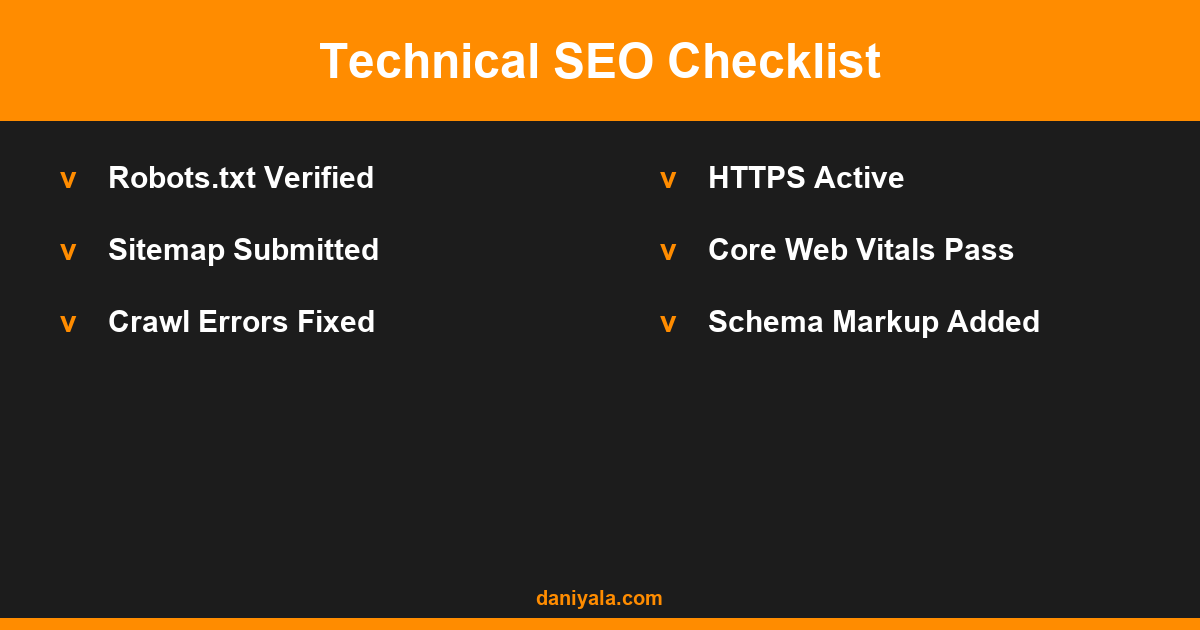
Your site should be served entirely over HTTPS, with HTTP requests redirecting (301) to HTTPS. Mixed content errors — where HTTPS pages load HTTP resources — trigger browser warnings and can affect rankings. Scan for mixed content using the GSC Security & Manual Actions section or a tool like Why No Padlock.
Fix duplicate content with canonical tags
Duplicate or near-duplicate content confuses Google about which version to rank. Common causes on WordPress include paginated archives, tag pages, and session ID parameters in URLs. Use rel="canonical" to point duplicate URLs to the preferred version. Rank Math and Yoast handle this automatically if configured correctly — confirm by checking the source code of your paginated URLs.
Add structured data (schema markup)
Schema markup helps Google understand your content and can enable rich results (FAQ dropdowns, review stars, breadcrumbs). For a WordPress blog or service site, the most valuable schema types are Article, FAQPage, LocalBusiness, and BreadcrumbList. Rank Math adds Article and BreadcrumbList automatically — add FAQPage manually to relevant posts for the best coverage.
Maintain a Regular Technical SEO Routine
Technical SEO isn’t a one-time task — it degrades over time as you add new content, install plugins, and update your theme. I recommend a monthly check in GSC (Coverage, Core Web Vitals, Sitemaps) and a full crawl quarterly.
If you’re wondering about timelines for results, the guide on how long does SEO take to work covers realistic expectations based on how clean the technical foundation is.
Frequently Asked Questions
How do I know if my technical SEO has issues?
Start with Google Search Console — the Coverage and Core Web Vitals reports surface most common problems for free. If you see a large gap between pages submitted in your sitemap and pages Google has indexed, that’s almost always a technical issue worth investigating before doing anything else.
What is the fastest way to improve technical SEO on WordPress?
Fix crawl errors and noindex issues first (highest impact), then tackle page speed with a caching plugin and image compression. These two steps typically produce visible improvements in GSC crawl stats within two to four weeks. Structured data and internal linking improvements follow after the foundation is stable.
Does page speed affect SEO rankings?
Yes. Google uses Core Web Vitals as a ranking signal, with LCP being the primary metric. Sites that score “Good” on all three Core Web Vitals signals benefit from a ranking boost in competitive queries. More importantly, slow sites have higher bounce rates, which further reduces the chance of ranking sustainably.
How often should I run a technical SEO audit?
Run a light check monthly using GSC reports, and a full crawl (Screaming Frog or similar) every quarter. After major site changes — new theme, plugin updates, a migration — always run a full crawl within 48 hours to catch any regressions before Google recrawls the affected URLs.
Can I improve technical SEO without a developer?
Most common technical SEO fixes on WordPress are plugin-level tasks — installing a caching plugin, compressing images, adding schema via Rank Math, and fixing noindex settings. You don’t need a developer for 80% of these. A developer is needed for server-level work (hosting configuration, HTTPS setup on legacy servers, custom code performance issues).
Need help implementing this? I’m Daniyal — freelance SEO & WordPress expert. Contact me or find me on Upwork.





 by Daniyal © 2026 All Rights Reserved