
The best WordPress security tips are not complicated — but most site owners skip three or four of the most critical ones because they don’t look urgent until something goes wrong. In client work I’ve seen sites defaced, admin accounts locked out, data scraped, and Google-blacklisted in cases that were entirely preventable with an afternoon of setup. This guide covers what actually matters, ranked by impact, based on audits across dozens of WordPress installations.
WordPress powers a large share of the web, which makes it a constant automation target. Most attacks are bot-driven — scripts scanning for outdated plugins, weak passwords, or exposed login pages. Implementing even half the measures below dramatically reduces your exposure to these automated threats.
Table of Contents
- Why WordPress Sites Get Hacked (and What It Costs)
- Keep Everything Updated — Core, Plugins, and Themes
- Use Strong Credentials and Two-Factor Authentication
- Install a Dedicated WordPress Security Plugin
- Limit Login Attempts and Protect the Login Page
- Enable HTTPS and Force SSL Sitewide
- Set Up Automatic Off-Site Backups
- Harden Your WordPress Configuration
- Monitor Your Site Continuously
- Frequently Asked Questions
Why WordPress Sites Get Hacked (and What It Costs)
Understanding what attackers are targeting helps you prioritize. The most common causes of WordPress compromises, in order of frequency:
- Outdated plugins and themes: Vulnerabilities in older versions are publicly disclosed after patches are released. Bots scan for sites running vulnerable versions within hours of disclosure. This is the leading cause of WordPress compromises.
- Weak or reused admin passwords: Brute-force attacks attempt thousands of credential combinations. Simple or reused passwords are reliably cracked.
- Nulled (pirated) themes and plugins: Pirated premium plugins often contain pre-installed backdoors. Never use nulled software on a live site.
- Insecure shared hosting: Shared hosting environments where one compromised account can affect others on the same server.
- No backup plan: Not a cause of getting hacked, but the difference between recovery in hours versus permanent data loss.
The real cost of a WordPress hack: you lose time cleaning it up or paying someone else to (typically $100–$400 for malware removal), your site may be blacklisted by Google — killing all organic traffic until you get cleared — and your users may have their data or devices exposed. My complete WordPress security guide covers the full attack surface in detail, but this article focuses on the highest-ROI measures to take first.
Keep Everything Updated — Core, Plugins, and Themes
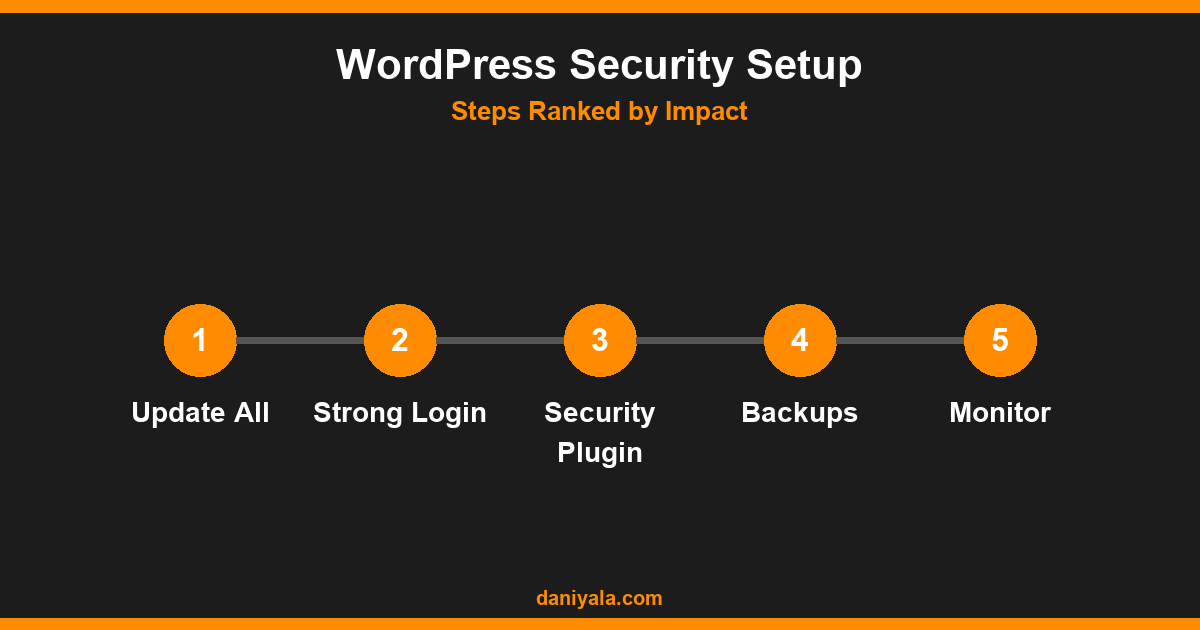
If there is one WordPress security tip that matters more than every other, it’s this: keep WordPress core, all plugins, and all themes updated at all times. When a vulnerability is discovered in a plugin, security researchers publish the details after a patch is released. The interval between public disclosure and automated exploitation of unpatched sites is measured in hours.
How to implement this consistently:
- Enable automatic updates for minor WordPress core releases (security and maintenance patches) — verify this in Dashboard → Updates
- Set a weekly calendar reminder to review and apply plugin and theme updates
- Remove any plugins and themes you are not actively using — deactivated plugins can still be exploited if left installed
- Check the changelog and last-updated date on the WordPress.org plugin page before relying on any plugin; if it hasn’t been updated in 2+ years, start evaluating replacements
The WordPress security team releases core patches quickly when vulnerabilities are found. Your job is to apply them without delay and keep your plugin stack current.
Use Strong Credentials and Two-Factor Authentication
Your WordPress admin password must be long (16+ characters minimum), unique to this account, and stored in a password manager. “Unique” is the non-negotiable requirement — password reuse means a breach anywhere else you have an account can expose your WordPress admin credentials directly.
Two-factor authentication (2FA) makes brute-force attacks practically irrelevant even if your password is compromised. Implementation options:
- WP 2FA plugin (free): Adds TOTP-based 2FA via Google Authenticator or Authy. Straightforward setup, no paid tier required for basic use.
- Bundled 2FA from security plugins: Wordfence, Solid Security, and most other dedicated security plugins include 2FA as a core feature.
- Change the default admin username: Attackers always attempt “admin” first. If your current username is “admin,” create a new administrator account with a different username, transfer ownership, and delete the old account.
While you’re reviewing credentials: check which users have administrator access on your site. In audits I frequently find admin accounts for contractors or employees who left months ago. Remove or downgrade access for any account that no longer needs it.
Install a Dedicated WordPress Security Plugin
A security plugin handles multiple hardening tasks in one place and provides ongoing scanning and alerting. The two most established options are Wordfence and Solid Security (formerly iThemes Security) — both have effective free tiers.
What to enable in whichever plugin you choose:
- Web Application Firewall (WAF): Blocks malicious requests before they reach your WordPress installation. Wordfence’s firewall runs most effectively in “extended protection” mode, configured to load before WordPress.
- Malware scanning: Regular scans of core files, plugins, and themes against known malware signatures and file change detection.
- Login security: CAPTCHA on the login page and tracking of failed login attempts.
- File change monitoring: Alerts when core WordPress files are modified — a key early signal of a compromise.
For how security plugins compare to SEO plugins and how to structure your overall WordPress plugin stack, my guide on the best SEO plugins for WordPress covers the broader plugin management approach I recommend.
Limit Login Attempts and Protect the Login Page
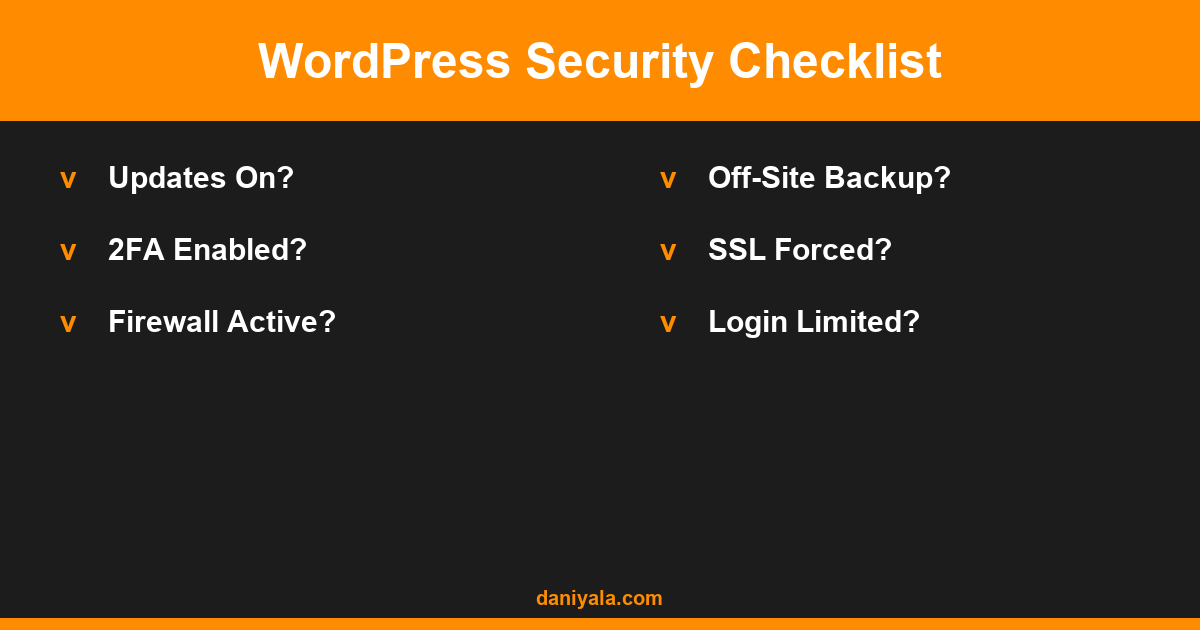
WordPress allows unlimited login attempts by default — which makes brute-force attacks trivially easy. A bot can try millions of password combinations without interruption. Fixing this is a five-minute change with significant impact.
Implementation steps:
- Limit login attempts: Plugins like Limit Login Attempts Reloaded (free) block IP addresses after a configurable number of failures (typically 3–5). Most security plugins bundle this feature.
- Move your login URL: Changing the login URL from the default /wp-admin/ to something custom reduces automated bot traffic hitting your login page. Wordfence and Solid Security both offer this. Keep a record of your custom URL — getting locked out is a common mistake with this setting.
- Add reCAPTCHA to the login form: Google reCAPTCHA v3 (invisible challenge) stops most automated credential-stuffing attempts without requiring users to solve puzzles.
- Restrict admin access by IP: If you access WordPress admin from a consistent IP address, block /wp-admin/ access to all other IPs at the server level. This is the strongest available login protection, but requires hosting-level configuration (via .htaccess or cPanel firewall rules).
Enable HTTPS and Force SSL Sitewide
Every WordPress site must run on HTTPS — not just for security but for SEO. Google uses HTTPS as a ranking signal, and Chrome labels HTTP sites “Not Secure,” which damages conversion rates and user trust before visitors even read your content. Most quality hosting providers offer free SSL certificates through Let’s Encrypt, and most modern managed WordPress hosts enable HTTPS by default.
If your site is already on HTTPS but still showing mixed content warnings (HTTP assets loading on HTTPS pages), the Really Simple SSL plugin resolves most of these automatically. Configure your hosting to force HTTPS redirects at the server level so all HTTP requests automatically redirect to HTTPS permanently.
Set Up Automatic Off-Site Backups
Backups are your recovery system — they don’t prevent attacks, but they determine whether a compromise takes hours or weeks to recover from. Without a working backup, malware or ransomware can mean starting from scratch. With a recent clean backup, restoration takes a few hours.
What a reliable backup setup requires:
- Frequency: Daily for sites with regular content updates, orders, or form submissions. Weekly minimum for static brochure sites.
- Off-site storage: Your backup must be stored somewhere other than your web server. A compromised server can mean encrypted or deleted on-server backups. Use a remote destination: Google Drive, Amazon S3, Dropbox, or your hosting provider’s external backup system.
- Tested restoration: Run a test restoration to a staging environment at least once to verify your backup is complete and usable — a backup you’ve never tested may not work when you need it.
Free backup plugins worth using: UpdraftPlus (supports remote storage in the free tier) and BackWPup. Most managed WordPress hosts (WP Engine, Kinsta, SiteGround) include automated daily backups with one-click restoration.
Harden Your WordPress Configuration
Beyond plugin-managed security, several file-level and server-level hardening steps reduce your attack surface significantly. According to the WordPress Developer Security documentation, sanitizing inputs and validating outputs at the code level is critical — but for site owners, these configuration steps are more immediately actionable:
- Disable XML-RPC if unused: XML-RPC allows remote WordPress connections and is a common brute-force amplification vector. If you don’t use Jetpack or remote publishing tools, disable it via your security plugin or .htaccess.
- Protect wp-config.php: Add .htaccess rules to block direct HTTP access to wp-config.php, which contains your database credentials.
- Disable the file editor: Add
define('DISALLOW_FILE_EDIT', true);to wp-config.php. This prevents an attacker who gains admin access from editing plugin and theme files directly from the dashboard. - Correct file permissions: Directories should be 755, files 644, and wp-config.php 600 or 640. Permissive 777 permissions on directories make file injection significantly easier.
- Hide your WordPress version: Your exact version number in HTML source helps bots target known vulnerabilities. Security plugins can strip this from theme output automatically.
For a full walkthrough of how the WordPress file system is structured and why each hardening step matters, my WordPress security tutorial covers the technical foundations that make these configuration changes effective.
Monitor Your Site Continuously
Security is not a one-time setup — it requires ongoing monitoring to catch issues before they escalate. The monitoring systems worth setting up:
- Uptime monitoring: Free services like UptimeRobot alert you within minutes when your site goes down. Unexpected downtime is often the first signal of a compromise or server issue.
- Google Search Console: If Google starts flagging your pages as containing malware or flagging unexpected redirects, you’ll see it in Search Console before most other signals.
- Security plugin email alerts: Configure your plugin to send alerts for blocked attacks, file changes, and new administrator account creation.
- Sucuri SiteCheck: Free external malware scanner that checks your site against blacklist and malware databases. Run it monthly or after significant plugin updates.
The goal is to know about a compromise within hours, not days. The longer malware runs undetected, the more damage it causes — to your reputation, your SEO rankings, and your users. If you’re building a new site and want to apply these practices from the start, my guide on becoming a WordPress developer covers the professional setup workflow I use on every client project.
Frequently Asked Questions
What is the most important WordPress security tip?
Keeping everything updated — WordPress core, plugins, and themes — is the single highest-impact security measure. The majority of WordPress compromises happen through known vulnerabilities in outdated plugins. Enabling automatic minor core updates and reviewing plugin updates weekly eliminates the largest share of your attack surface.
Is WordPress secure out of the box?
WordPress core is actively maintained and generally well-secured. Vulnerabilities typically come from the third-party plugin and theme ecosystem, which WordPress itself cannot control. A default WordPress installation with no plugins is reasonably secure; a site running 20 plugins, some rarely updated, presents a very different risk profile. Security is primarily about what you add to WordPress and how diligently you maintain it.
Do I need a paid security plugin?
The free tiers of Wordfence and Solid Security are sufficient for the majority of small business and personal sites. Paid tiers add real-time threat intelligence, more frequent malware definition updates, and advanced blocking options — useful for higher-traffic or higher-value sites. Start with the free tier and implement all the configuration steps above before evaluating whether a paid upgrade is warranted.
How do I know if my WordPress site has been hacked?
Warning signs include: administrator accounts you didn’t create, pages or posts you don’t recognize, unexpected redirects when visitors click links, a sudden drop in Google Search Console rankings, Chrome showing a “Deceptive site ahead” warning, your hosting account suspended for abuse, or your security plugin alerting on file changes. Run a Sucuri SiteCheck scan if you suspect anything is wrong.
What should I do immediately if my WordPress site is hacked?
Take the site offline or enable maintenance mode immediately to stop further damage. Restore from your most recent clean backup. If you don’t have a usable backup, manual malware removal typically requires professional help. After restoration: change all passwords (WordPress admin, FTP, database, hosting panel), identify what vulnerability was exploited, patch it, and review your backup and monitoring setup so the same attack can’t recur.
Need help securing your WordPress site or recovering from a compromise? I’m Daniyal — freelance SEO & WordPress expert. Contact me or find me on Upwork.



 by Daniyal © 2026 All Rights Reserved