
If you want faster rankings and a better user experience, the best WordPress speed optimization tips will have more impact than almost any other technical change you can make. Page speed directly affects Core Web Vitals scores, which Google uses as a confirmed ranking signal. I audit WordPress sites regularly for clients, and speed issues are the most common technical problem I find — and most are fixable without a developer. This guide covers the highest-impact optimizations, ordered by the improvement they typically deliver on real sites.
For a foundation-to-advanced approach, see the complete WordPress speed optimization guide. This article focuses on the most actionable individual tips you can apply right now.
Table of Contents
- 1. Measure Before You Touch Anything
- 2. Switch to a Lightweight Theme
- 3. Install a Caching Plugin
- 4. Optimise Images Aggressively
- 5. Minify and Defer CSS and JavaScript
- 6. Use a Content Delivery Network
- 7. Clean Your Database Quarterly
- 8. Choose a Quality Host
- 9. Eliminate Render-Blocking Resources
- Frequently Asked Questions
1. Measure Before You Touch Anything
Before changing anything, establish a performance baseline. Run your homepage through Google PageSpeed Insights and record your LCP, INP, and CLS scores. Also note your Time to First Byte (TTFB) — this tells you immediately whether your server is the bottleneck or whether the issue lies in frontend assets.
Target benchmarks for a well-optimised site:
- LCP (Largest Contentful Paint): under 2.5 seconds is Good; 2.5–4 seconds needs improvement; above 4 seconds is Poor
- INP (Interaction to Next Paint): under 200ms
- CLS (Cumulative Layout Shift): under 0.1
- TTFB: under 200ms is ideal; above 400ms means the host is the problem, not your plugins
Screenshot these scores before you start. Without a before-and-after comparison, you’ll never know which change actually moved the needle. On audits I’ve run, clients are often surprised that their biggest gains came from a single fix, not ten changes applied simultaneously.
2. Switch to a Lightweight Theme
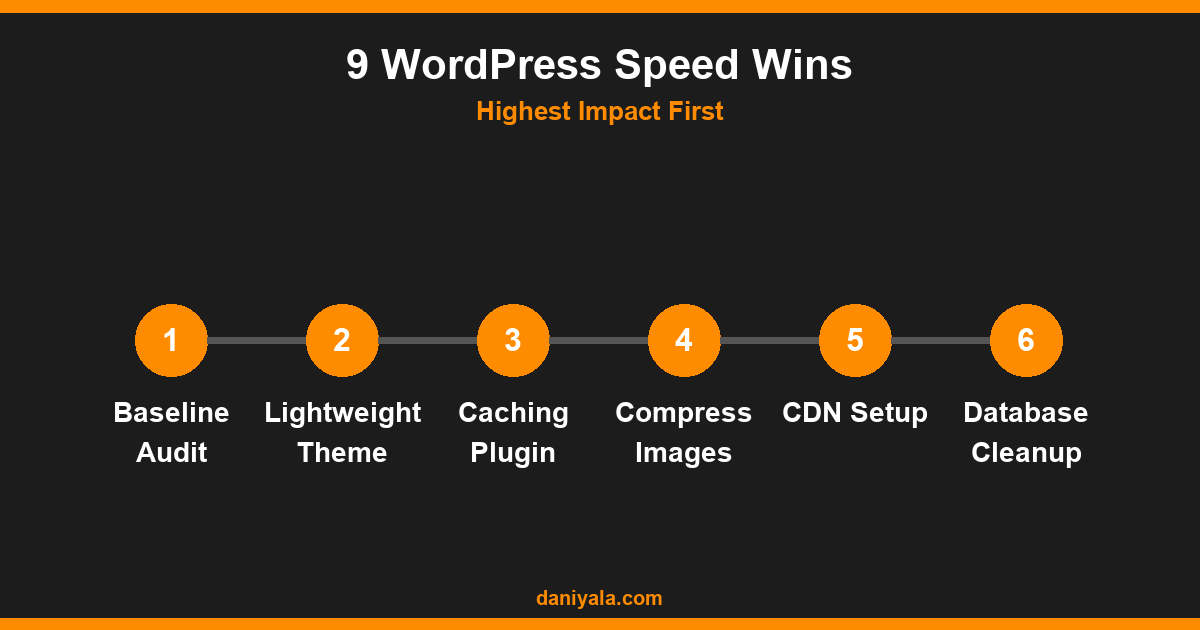
Your theme is the single biggest variable in WordPress performance. Premium page-builder themes like Avada, Divi, and The7 typically load 400–700KB of CSS and JavaScript before any of your content is rendered. A lightweight alternative — GeneratePress, Blocksy, or Kadence — loads in under 100KB total.
If you’re building with Elementor, pair it with the Hello Elementor theme or any blank-style theme. Elementor carries its own asset weight; loading a heavy theme on top doubles the bloat. On client projects, I’ve switched from a bloated theme to GeneratePress and watched load times drop from 6 seconds to under 2 seconds with no other changes.
If switching themes isn’t possible because of your current design, use a plugin like Asset CleanUp Pro or WP Rocket to limit which theme assets load on which pages. Selective asset loading is a solid middle-ground when a full theme change isn’t viable.
For Elementor-specific performance settings built into the page builder itself, see the Elementor complete guide.
3. Install a Caching Plugin
WordPress builds every page from PHP and database queries on each visitor request. A caching plugin pre-renders pages as static HTML and serves them directly, bypassing PHP and MySQL entirely. This is the fastest way to reduce TTFB and total load time for most sites.
Top options in 2026:
- LiteSpeed Cache — best if your host runs LiteSpeed (Hostinger, Namecheap). Includes object caching, image compression, and CSS/JS optimization in one plugin, all for free
- WP Rocket — paid ($59/year), the most complete all-in-one solution. Handles page caching, minification, lazy loading, preloading, and CDN integration in one interface
- W3 Total Cache — free, highly configurable, but requires more technical setup than most beginners are comfortable with
- WP Super Cache — free, basic, good for simple blogs with mostly static pages
Important: many managed WordPress hosts (WP Engine, Kinsta, Cloudways) include server-level caching that outperforms any plugin. Check your host documentation before installing a caching plugin — running two caching systems simultaneously often produces worse results than either one alone.
4. Optimise Images Aggressively
Images are the single largest contributor to page weight on most WordPress sites. A high-resolution hero image uploaded straight from a camera can be 4–8MB. Properly optimised, that same image should be under 150KB without visible quality loss. The gap is almost always large, and the fix is straightforward.
Before uploading: Resize images to the maximum display size (usually 1200–1400px wide for full-width images) and compress with TinyPNG, Squoosh, or Imagify’s offline tool. Target under 200KB for full-width images, under 80KB for thumbnails.
Format: Switch to WebP wherever possible. WebP images are 25–35% smaller than JPEGs at equivalent visual quality. ShortPixel and Imagify both auto-convert and serve WebP to supporting browsers, with JPEG fallback for older ones.
Lazy loading: WordPress 5.5+ adds loading="lazy" to images by default, which prevents off-screen images from blocking the initial page load. Confirm your theme or plugins aren’t overriding this attribute — check rendered source in browser DevTools on any page with multiple images.
The full image workflow — including how to bulk convert your existing media library — is in the WordPress speed optimization tutorial.
5. Minify and Defer CSS and JavaScript
Every plugin you install adds CSS and JavaScript to your site, often on every page regardless of whether that page uses the plugin. Minification removes whitespace, comments, and redundant characters from these files. Deferring scripts delays non-essential JS from loading until after the main page content is visible — critical for improving both LCP and INP scores.
Minification: WP Rocket, LiteSpeed Cache, and W3 Total Cache all handle minification automatically. Enable it and test afterward — in rare cases, aggressive minification breaks interactive elements like dropdown menus or form validators.
Dequeue unused scripts per page: The Asset CleanUp plugin provides a per-page toggle to disable specific scripts and stylesheets on pages where they’re not needed. For example: if WooCommerce loads its cart JavaScript on your About page, disabling it there is safe and beneficial.
Defer non-critical JS: Analytics scripts, chat widgets, and social sharing buttons should be deferred so they don’t block rendering. WP Rocket’s Load JavaScript Deferred setting handles this automatically. Test after enabling — some third-party integrations break when deferred.
6. Use a Content Delivery Network
A CDN stores copies of your static files — images, CSS, JavaScript, fonts — on servers distributed globally. When a visitor loads your site, they download files from the server closest to them rather than waiting for a request to reach your origin server. For sites hosted in Pakistan or the UK serving international visitors, this can cut load times for distant users by 40–60%.
Cloudflare’s free plan is the most accessible starting point. It provides CDN, DDoS protection, and SSL — it’s worth configuring just for the CDN benefit alone. For sites already on Cloudflare, make sure your caching plugin is configured to complement it rather than conflict with it.
Premium CDN options for higher-traffic sites: BunnyCDN (most cost-effective per-GB pricing), KeyCDN (strong European coverage), and Cloudflare Pro (includes image optimisation and priority routing). Check WordPress.org for the official LiteSpeed Cache Cloudflare integration documentation if you’re on a LiteSpeed host.
7. Clean Your Database Quarterly
WordPress stores post revisions, auto-drafts, spam comments, transients, and orphaned metadata in the database. On an active site after 12 months of regular use, this accumulates into thousands of unnecessary rows that slow every database query on every page load — even cached ones when the cache misses.
Use WP-Optimize or Advanced Database Cleaner to remove:
- Post revisions — set a maximum of 3–5 revisions kept via
wp-config.phpusingdefine('WP_POST_REVISIONS', 5); - Auto-draft posts
- Trashed posts and comments
- Expired transients
- Orphaned postmeta records (metadata for posts that no longer exist)
After deleting old records, run the Optimise Tables function in WP-Optimize to defragment tables and reclaim disk space. Schedule quarterly database cleanup — it prevents the slow creep of database bloat from impacting your query times over time without requiring manual attention.
8. Choose a Quality Host
Cheap shared hosting is the hidden performance killer that most site owners ignore until rankings stagnate. If your TTFB is over 400ms, no plugin will fix it — the server is the bottleneck. It’s like putting performance tyres on a car with a broken engine. The infrastructure has to support the optimization layer.
For most WordPress sites in 2026:
- Budget: Hostinger — LiteSpeed server, NVMe storage, under $3/month with promotions. Legitimately fast for the price, especially if you use LiteSpeed Cache
- Mid-range: SiteGround — server-side caching, UK and EU server locations, solid support for WordPress-specific issues
- Premium: Kinsta or WP Engine — managed WordPress, automatic scaling, built-in CDN and caching, no plugin configuration needed for many speed features
If you’re on shared hosting with TTFB above 600ms, upgrading your host will have more impact than every other tip in this article. Security considerations follow closely behind speed — the WordPress security guide covers what to check when evaluating hosting providers.
9. Eliminate Render-Blocking Resources
Render-blocking resources prevent the browser from displaying any content until the resource has finished loading. They are among the most common causes of poor LCP scores on WordPress sites. Common culprits: Google Fonts loaded in <head>, third-party scripts loaded synchronously, and large plugin stylesheets that are required before any content renders.
How to diagnose: open Chrome DevTools, go to the Performance tab, and run a recording. Any resource appearing in the Parser Blocking row is render-blocking and should be addressed.
Common fixes:
- Google Fonts: Host locally using the OMGF plugin or by manually downloading font files and serving them from your own server. This removes the external DNS lookup and connection overhead
- Third-party scripts: Use Perfmatters or WP Rocket to delay scripts like Intercom, Drift, or Facebook Pixel until after page load using an interaction trigger
- Large CSS: Inline critical CSS for above-the-fold content and defer the full stylesheet — WP Rocket Pro and Autoptimize support this, though it requires careful testing
Check Google’s developer documentation for the current Core Web Vitals thresholds and how render-blocking is measured in PageSpeed Insights.
Frequently Asked Questions
What is a good WordPress PageSpeed score?
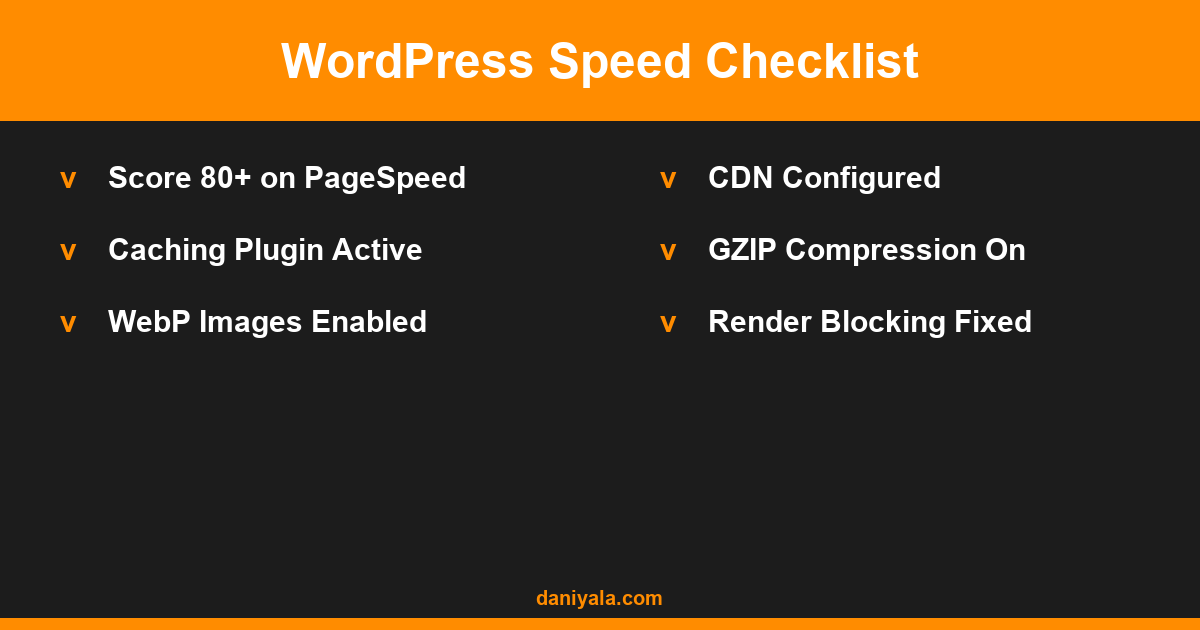
Aim for 80+ on both desktop and mobile in PageSpeed Insights. Desktop scores of 85–95 are achievable on a well-optimised WordPress site. Mobile is harder — 75–85 is realistic for most sites with images and a page builder. What matters more than the overall score is achieving Good status on all three Core Web Vitals: LCP under 2.5s, INP under 200ms, and CLS under 0.1.
Does a caching plugin alone fix WordPress speed?
It helps significantly but rarely fixes everything. Caching solves TTFB and reduces server load on repeat visitors. It does not fix large unoptimised images, render-blocking resources, or a slow host. Think of caching as the foundation — then layer in image optimisation, script management, and CDN on top for the full effect.
Is WP Rocket worth the cost?
For non-technical users, yes. WP Rocket bundles page caching, minification, deferral, lazy loading, database cleanup, and CDN integration into one interface without requiring technical setup. At around $59 per year for one site, it’s justified for business sites where speed directly affects conversions and rankings. If you’re comfortable configuring LiteSpeed Cache manually, the free version can achieve similar results.
Does WordPress hosting affect page speed?
More than almost anything else. A bad host adds 600–1,000ms to TTFB before any page content loads. No plugin compensates for slow server hardware or overloaded shared hosting infrastructure. If you’re serious about WordPress performance, hosting is not where to reduce costs.
How do I speed up WordPress without a developer?
Install WP Rocket, compress images before upload using TinyPNG, switch to a lightweight theme like GeneratePress, add Cloudflare on the free plan, and run WP-Optimize quarterly for database cleanup. These five steps alone will take most sites from a PageSpeed score in the 30–50 range up to 75–85 without touching a single line of code.
Is your WordPress site scoring under 60 on PageSpeed? I audit and fix speed issues for clients — caching setup, image optimisation, render-blocking fixes, and CDN configuration. Get a speed audit or hire me on Upwork.











 by Daniyal © 2026 All Rights Reserved